Audio Technology and Sound Design
Best Gaming Headset For Story Games & Dialogue Clarity
29th May•12 min read
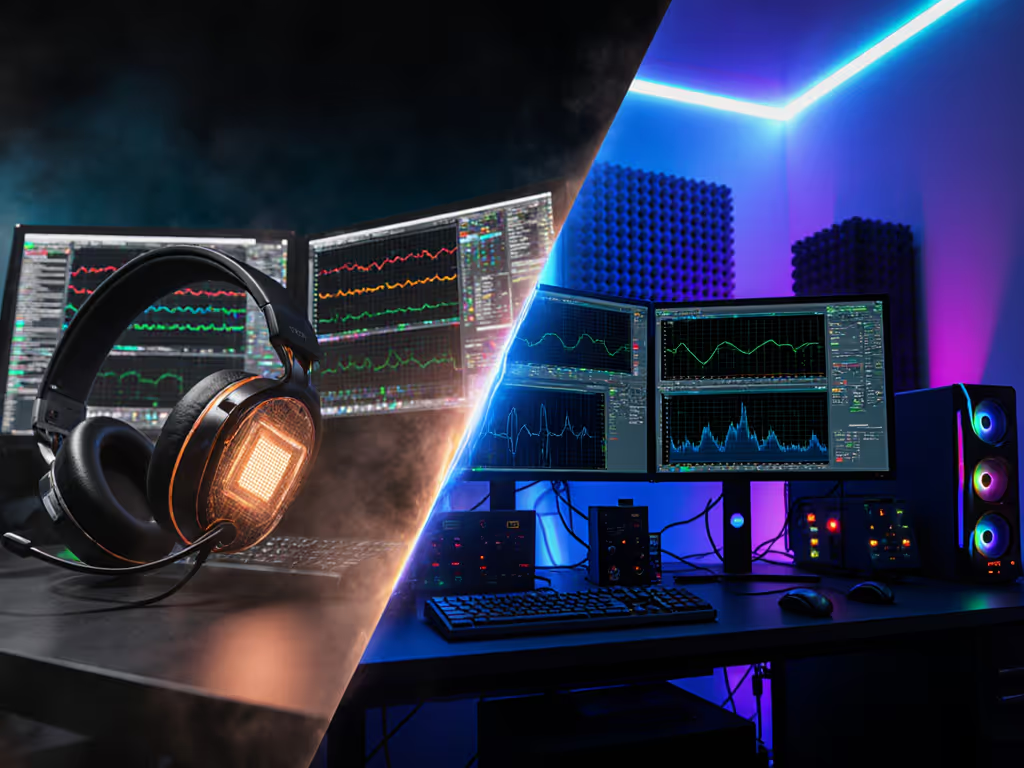
In a three-hour co-op session, latency in your audio chain is latency in your callouts, and callouts win rounds. Onboard DSP (Digital Signal Processor) hardware typically delivers lower latency than software-based audio processing, because it processes your mic input and game audio without burning CPU cycles or waiting for Windows buffer gates[4]. But lower latency only matters if you're actually using the right tool for your playstyle and platform. If you're deciding between wireless protocols, dig into our 2.4GHz vs Bluetooth latency analysis for data-backed tradeoffs. Let's break down how to measure the difference and configure your setup so your squad hears you clearly, on time, every single time.
A Digital Signal Processor is a dedicated hardware chip that handles audio post-processing independently of your CPU[4]. Think of it as a tiny sound engineer bolted inside your interface, mixing your mic and processing game audio without asking your processor for permission.
Software DSP, by contrast, runs as a service or driver on your PC (Realtek headphone virtualization, Windows Sonic spatial sound, third-party apps like Razer Surround[2]). It's flexible and updates easily, but it shares system resources with your game, Discord, anti-cheat system, and everything else fighting for CPU time.
For gaming, the tension is real: software DSP gives you more options and easier tweaking, but onboard hardware DSP cuts the middle-person latency cost.
Before choosing hardware or software, you need to know where you stand. Latency in voice comms isn't just the headset, it is the whole chain: mic input → processing → USB/wireless transmission → arrival at Discord or in-game chat. Gaming-focused reviewers and lab tests often focus on this round-trip time.
Action: Use a simple mic-loopback test. Speak into your mic, listen to yourself (sidetone or loopback monitor) through Discord's echo test or OBS input preview, and count the delay in milliseconds. Anything under 50 ms feels instantaneous; above 150 ms, you'll notice you're shouting before you hear your own voice. Record your baseline before any changes.
Is your headset USB with a built-in DAC/DSP? Some gaming headsets include a mini-DSP in the USB controller itself. Check your headset manual or manufacturer specs for "onboard DSP" or "hardware processing." This is rare but powerful for latency.
Does your sound card or external interface have onboard DSP? Dedicated sound cards and audio interfaces (e.g., Sound Blaster Play!3) market DSP effects prominently[2]. Onboard PC sound cards typically do not; they're just DACs (digital-to-analog converters) relying entirely on driver-level software[4].
What software is currently active? Check:
Each layer of software adds latency. For stability and features without bloat, compare major suites in our gaming headset companion apps roundup. If you have three conflicting apps running sidetone or surround, you're stacking delays.
Software-based virtual surround and mic processing introduce latency because they rely on system buffers and CPU scheduling. When Windows Sonic or a sound card driver processes your voice, it's queuing your audio in a buffer, waiting for CPU availability, then outputting[4]. This is typically 10 to 40 ms added, depending on buffer size and system load.
Conversely, onboard DSP on an external interface bypasses the OS buffer: your mic audio hits the hardware chip, gets processed locally, and outputs with minimal queuing[4]. The latency here is hardware-dependent but often under 5 ms for dedicated audio interfaces with DSP, because the chip doesn't ask permission (it just works).
The catch: not all onboard DSP is optimized for gaming. High-end audio interfaces with onboard DSP (reverb, EQ, compression) are designed for studio recording and monitoring, where ultra-low latency matters but you're not in a team fight[6][7]. Gaming headsets with DSP chips are rare and usually marketed for spatial surround, not comms clarity or mic monitoring.
You should prioritize onboard DSP hardware (dedicated sound card or interface) if:
Real-world setup: Sound Blaster Play!3 or a Scarlett 2i2 (audio interface) with on-device DSP for sidetone and compression, so your voice stays clear in noisy environments without adding CPU load[4].
Software-based processing (Realtek, Windows Sonic, Razer Surround) makes sense if:
Real-world setup: Use Windows Sonic spatial audio for positional cues, Discord's built-in noise suppression, and a browser-based sidetone tool like VB-Cables. You'll add ~20 ms latency, but it's cross-platform and requires zero new hardware.
After you've chosen your audio chain (onboard DSP hardware, software DSP, or hybrid), re-run your sidetone latency test. Use a portable recorder or your phone mic held next to your mouth and a laptop speaker, then have your headset play back your voice and measure the delay from speaking to hearing yourself.
Document your numbers:
If you gained 30+ ms of latency by adding software layers, disable the unnecessary layer. If switching to onboard hardware saved only 5 ms but costs $150, ask yourself: does that 5 ms actually change your callout timing, or is your bottleneck elsewhere (bad mic, noisy environment, or Discord compression)?
Lab testing is useful, but the proof is in-session: can you call enemy positions faster, is your squad hearing you without asking for repeats, and do you feel you're reacting with your team instead of a beat behind?
Run a short 30-minute co-op or ranked session with your new audio chain. Pay attention to:
If you've cut latency but introduced noise or audio quality loss, you've broken the deal. Comms clarity and responsiveness matter more than a theoretical 10 ms gain if it costs you intelligibility.
If you're staying with software-based processing, prune ruthlessly:
Disable conflicting layers:
Keep what reduces latency:
This is where hardware audio processing benefits shine: onboard DSP on interfaces often includes low-latency sidetone built into the hardware, so you hear your own voice feedback at minimal delay with no CPU cost[4][6].
If you're software-only:
The goal: hear yourself clearly at < 50 ms latency so you don't unconsciously shout and strain your voice over long sessions.
Here's your immediate move:
Once you've found the leanest software config that works, then decide whether investing in onboard DSP hardware makes sense for your platform mix and competitive level. For most gamers, especially those jumping between PC, console, and mobile, a single, well-tuned software layer beats chasing hardware marginals.
But if you're a long-session player (4 to 8 hours) or running competitive esports titles where every millisecond surfaces in frame-perfect callouts, hardware audio processing benefits by removing a CPU-heavy layer and letting your system focus on game logic instead. Small changes keep squads talking instead of suffering, and that is the real win.